 PlateyGet the app
Switching Workout Apps: Export Your Log to CSV First
Before you delete a workout app, export your history. What Strong, Hevy, JEFIT and Fitbod officially support, checked Nov 28, 2026, plus a four-step move.
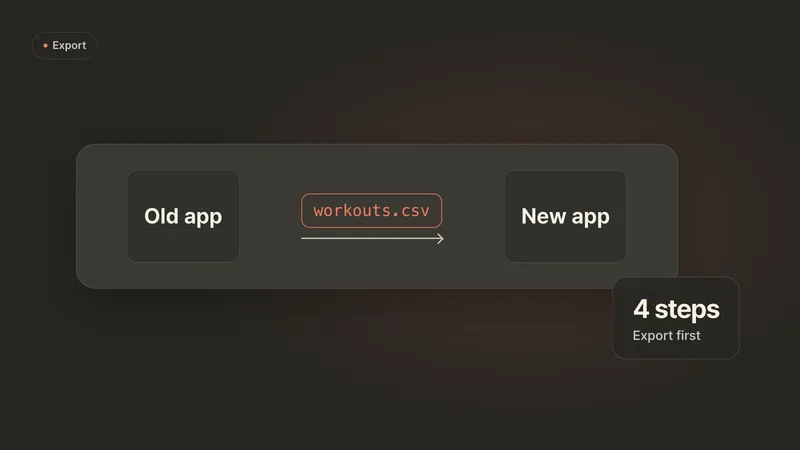
Export your history before you delete the old app. A CSV file opens in Google Sheets and Excel, stays readable without the app that made it, and is the format most documented import paths accept. Check both vendors' pages to see which data you can move. The old app has to export it, and the new app has to accept it.
What each app officially supports
We checked export and import support on Nov 28, 2026 using the vendors' own pages and US store listings. "Not verified" means we could not confirm it today, not that the feature is absent.
| App | Export | Import |
|---|---|---|
| Strong | "Export all of your data to Notes or Email in CSV format" (US App Store listing) | Not verified |
| Hevy | Workouts or measurements, as a file that opens in spreadsheet programs; Profile > Settings > Export & Import Data > Export Data (help article, updated Nov 15, 2026) | Direct Strong CSV only, in English and in kg (help article, updated Nov 25, 2026) |
| JEFIT | Log in at jefit.com, Settings > Data Controls > Export Data, "in every account" (official FAQ); file format not stated on the page | Not verified |
| Fitbod | Not verified: the US App Store listing does not mention export, and the help center was not reachable today | Not verified |
Only the move from Strong to Hevy has a documented direct path among these apps. Set Strong to English and weights to kg before exporting. In Hevy, use Profile > Settings > Export & Import Data > Import Data > Import Strong CSV. Hevy's article says the file must be a direct Strong export; for other data, its support team can provide a sample CSV in the Strong format, but it does not support issues with files from outside Strong.
The four-step move
- Use the old app's official export instructions while your account still works. Export before you cancel anything that might cut off access or delete the account.
- Open the CSV on a computer and look for the columns you care about: date, exercise, sets, weight, reps. Check the unit (lb or kg) and date format, and make sure you can read the exercise names as text. If a column is missing from the file, it will not arrive in the next app.
- Follow the new app's import instructions if they cover your file. Otherwise, keep the CSV as your archive and start logging fresh; retyping a few recent sessions is safer than forcing an unsupported format.
- Before you delete anything, compare the last two weeks and your heaviest sets in the new app against the old one. Counts, dates and units are where silent errors show up.
JEFIT's FAQ says that once you delete your account, you can't recover it, your workouts or your history. It advises exporting first if you want a copy. Follow that order with any app.
What may not survive
The pages above describe moving workout history; none of them promises that every field comes along. Effort ratings (RPE or RIR), set notes, and superset ordering are the columns to look for in the export file itself, because none of the official pages we opened lists the exact columns. If those fields matter to you, open the CSV and check before you commit to the switch. The column set worth aiming for is in Workout Log Spreadsheet Template.
Keep the exported file even after a successful import. It is your backup against a bad import, a changed format, or a service that disappears, and it costs nothing to store.
What we could not verify
- Fitbod export. The US App Store listing does not mention export or CSV, and Fitbod's help center did not load for us today. Ask its support before assuming either way.
- Hevy page format. Hevy's help pages are bot-gated in a plain browser fetch, so we read the two articles through Hevy's official help-center API; the source links above are those API addresses.
- JEFIT export format. The FAQ confirms the export exists but does not state the file format.
- Strong import. We found no official statement about importing other apps' files into Strong.
Store listings and help articles change. Re-check the vendor's page on the day you move.
Where Platey fits
Platey, the app we make, exports sets, RPE and notes to CSV, and workout history and settings to JSON. We designed the CSV export so you can take your log with you and open it in a spreadsheet.
Summary
- Export before cancelling or deleting; deletion is permanent in at least one major app's own words.
- Strong exports CSV; Hevy exports spreadsheet-openable files and imports direct Strong CSV (English, kg); JEFIT exports from its web settings; Fitbod is not verified.
- Open the CSV, check columns and units, import only through documented paths, spot-check, and keep the file.
Sources
- Strong Workout Tracker Gym Log, US App Store listing (CSV export wording, checked Nov 28, 2026)
- Hevy help center: Exporting Your Data from Hevy (updated Nov 15, 2026; read via the official help-center API, checked Nov 28, 2026)
- Hevy help center: How to Import Strong App CSV Files and Export Your Data in Hevy (updated Nov 25, 2026; read via the official help-center API, checked Nov 28, 2026)
- JEFIT support FAQ (export via web Settings, Data Controls; deletion is permanent, checked Nov 28, 2026)
- Fitbod: Workout & Gym Planner, US App Store listing (no export mention found, checked Nov 28, 2026)